I: Import the Data
In which we locate a text file and
open it in Excel in a way which is useful to us.
1: Gather the Data
Download this file (right click and save) to
somewhere where you'll be able to find it.
2: Open the File
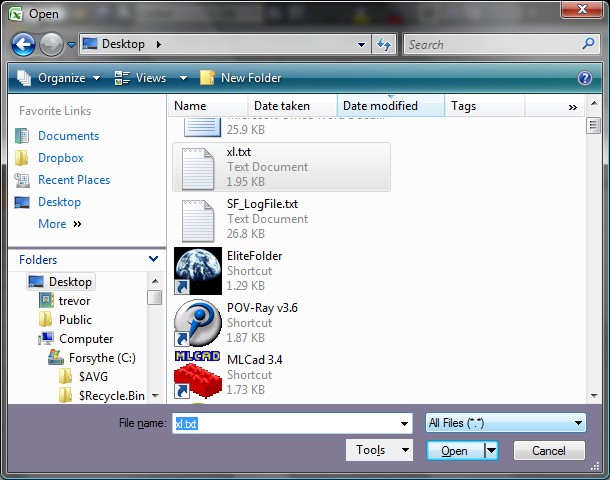
Start Excel, select "Open"
from the main menu, and ensure that the "Files of type" dropdown at
the bottom of the Open
dialogue box shows "All Files
(*.*)". Find the xl.txt
file you just downloaded and click on "Open" to open it.
3: Select the Import
Method
The Text Import Wizard
appears and we can use it to put our data into columns. Aside
from the opening line, the data seems to be laid out at a fixed width,
so let's take advantage of this. Ensure that the "Fixed width" radio button is
highlighted, and click "Next".
4: Delimit the Data
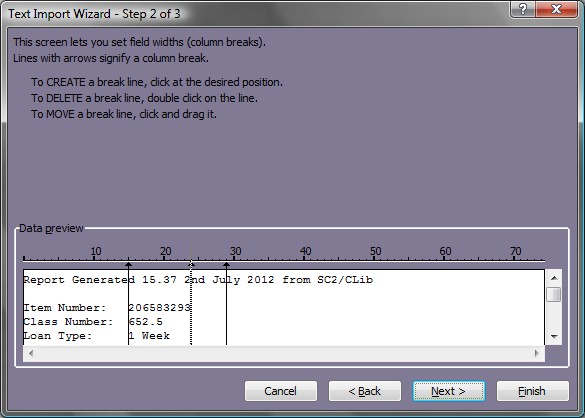
We should now see an example block of our text with three lines marking
the suggested column breaks. The first line is in a sensible place, but
we can probably do without the next two, so double click on the second
and third lines to get rid of them.
We don't need to do anything else with the data, so we can now click "Finish".
5: Save the File
Our data is now in the spreadsheet. Before we go any further let's save
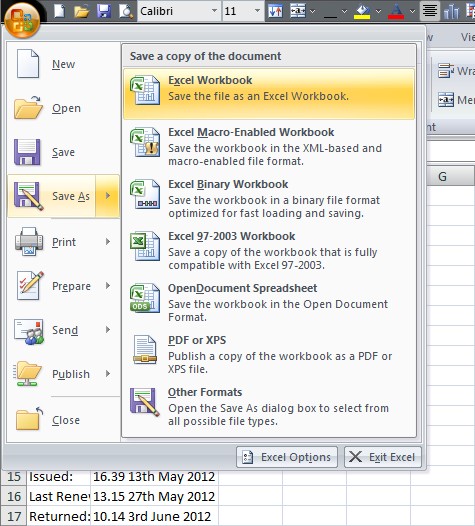
it. Go to "Save As" in
the main menu and click on "Excel
Workbook".
It suggest the name "xl.xlsx"
and we may as well go with that. Click "Save".